Artificial Intelligence

AI Powered Grammar Checkers for Flawless Writing

Source:https://www.jotform.com

I once sat in a high-stakes boardroom, ready to present a revolutionary HealthTech software architecture to a group of international investors. I had spent weeks on the technical specs, but as the first slide hit the screen, my heart sank. A glaring typo in the main heading—”Patient Data Saftey”—stared back at me. In that split second, the technical brilliance of the project felt overshadowed by a simple linguistic slip.

That moment changed how I viewed writing. In the tech industry, precision isn’t just about code; it’s about communication. Over the last decade, I’ve watched writing tools evolve from clunky spell-checkers that couldn’t tell “there” from “their” into sophisticated AI powered grammar checkers that understand nuance better than some humans.

If you’ve ever felt the sting of a sent email you wish you could pull back, or if you struggle to make your professional English sound “natural,” this deep dive is for you.


The Evolution of the Digital Editor

In the early days of my career, grammar checkers were like a rigid school teacher with a ruler. They checked for hard-coded rules: “Do not end a sentence with a preposition.” They were binary—either right or wrong.

Today’s AI powered grammar checkers are more like a seasoned editor sitting next to you. They don’t just look at words; they look at Context, Intent, and Tone. They understand that a technical white paper requires a different “voice” than a casual Slack message to a teammate.


1. How AI Powered Grammar Checkers Actually Work

To understand why these tools are so much better now, we have to look “under the hood” at the technology. Most modern checkers utilize Natural Language Processing (NLP) and Deep Learning.

The Brain Behind the Screen

Think of the old spell-checker as a simple dictionary. If the word isn’t in the book, it’s wrong. An AI-powered checker, however, uses a Neural Network.

It has “read” billions of sentences from books, articles, and academic papers. Because of this, it understands Semantic Meaning.

  • Analogi: If a traditional checker is a map, an AI checker is a GPS with real-time traffic updates. The map tells you where the road is, but the GPS tells you if the road is currently blocked by a confusing sentence structure.


2. Beyond Spelling: The Three Pillars of Modern AI Editing

When you use AI powered grammar checkers, you aren’t just fixing typos. You are enhancing three critical areas of your writing:

A. Clarity and Conciseness

In the tech world, we tend to over-explain. AI tools are excellent at identifying “fluff.” They might suggest changing “at this point in time” to “now.” For someone writing a technical manual or a clinical summary, this brevity is vital for readability.

B. Tone and Engagement

Are you being too aggressive? Too passive? AI tools now feature Tone Detectors. They analyze your word choice and tell you if you sound professional, joyful, or urgent. This is a game-changer for non-native English speakers trying to navigate cultural nuances in business.

C. Structural Logic

Intermediate-level AI tools can now spot “dangling modifiers” or inconsistent tenses across paragraphs. They ensure that if you start a report in the past tense, you don’t accidentally slip into the present mid-way through.


3. The Tech Stack: Top AI Writing Tools for 2026

Having tested dozens of platforms during my tenure as a writer and tech consultant, I’ve narrowed down the most effective AI powered grammar checkers based on specific needs:

  • Grammarly: Still the heavyweight champion for general use. Its browser extension and desktop integration make it nearly invisible and highly efficient.

  • ProWritingAid: The “Engineer’s Choice.” It provides deep-dive reports on sentence length variance, repeated words, and “sticky” sentences.

  • Hemingway Editor: While not a “checker” in the traditional sense, its AI focuses on making your writing bold and clear. It’s perfect for breaking down complex HealthTech jargon.

  • Quillbot: Excellent for Paraphrasing. If you have the data but can’t find the right way to say it, Quillbot’s AI helps restructure your thoughts without losing the meaning.


4. Technical Integration: APIs and The Future of Writing

For my more technical readers, the real power lies in API Integration. We are seeing a shift where AI powered grammar checkers aren’t just separate apps; they are being baked into our Content Management Systems (CMS) and Integrated Development Environments (IDEs).

Using Large Language Models (LLMs) like GPT-4o or Claude 3.5, developers are building custom grammar “wrappers” that understand specific industry terminology. In HealthTech, this means a checker that knows the difference between “asymptomatic” and “non-symptomatic” and won’t flag medical Latin as a “spelling error.”


5. Expert Advice: The “Hidden Warning”

As much as I love these tools, I have a warning for you that I’ve learned the hard way.

Tips Pro: Never click “Accept All” suggestions. AI is a co-pilot, not the captain. Sometimes, the AI will suggest a “correct” word that completely changes the technical meaning of a medical or legal term.

Beware of Digital Homogenization. If you follow every single AI suggestion, your writing can end up sounding “robotic” and lose its unique human personality. Use the AI to fix the errors, but keep your “voice” intact.


6. Scannable Checklist for Flawless Content

Before you hit “Send” or “Publish,” run your text through this mental (and digital) filter:

  • Check the Goal: Did you set the AI’s “Goal” setting (e.g., Academic vs. Creative)?

  • Scan for Red/Yellow Lines: Focus on grammatical errors first, then style suggestions.

  • Read Out Loud: If the AI’s “clearer” version sounds like a robot wrote it, ignore the suggestion.

  • Verify Technical Terms: Ensure the AI hasn’t “corrected” a niche technical keyword into something generic.


Summary: Your Professional Edge

In an era where your digital presence is often your first impression, AI powered grammar checkers are no longer optional. They are the final layer of polish on your hard work. By using these tools, you ensure that your audience focuses on your brilliant ideas, not your misplaced commas.

Whether you are a developer writing documentation or a student crafting your first thesis, let the AI handle the “rules” so you can focus on the “vision.”


What’s your “Writing Nightmare”?

Have you ever had a typo ruin a big moment, or are you looking for an AI tool that fits a specific technical niche? Drop a comment below and tell me about your favorite writing tool—or the one mistake you’ll never make again!

Laptops

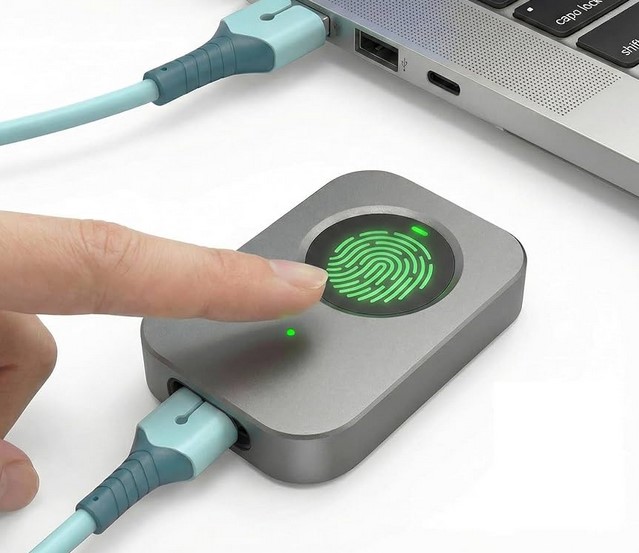
Laptops with Fingerprint Sensor: For Better Security

Source:https://m.media-amazon.com

Picture this: You’re in a bustling coffee shop, rushing to finish a medical tech proposal before your next flight. You get up for thirty seconds to grab a napkin, and in that window, someone glances at your screen. You’ve typed your password—”Password123!”—a dozen times today, and anyone watching your fingers could mimic the pattern in a heartbeat.

In my ten years navigating the sensitive corridors of HealthTech, I’ve seen data breaches that didn’t happen because of sophisticated hackers in dark rooms, but because of “shoulder surfing” in public spaces. That’s why, when people ask me for hardware recommendations, I don’t start with RAM or CPU. I start with the power button—specifically, laptops with fingerprint sensor technology.

If you are still typing a PIN or a password every time you wake your computer, you aren’t just wasting time; you’re leaving your digital front door unlocked.


The Evolution of the “Biological Key”

When I first started in the tech industry, biometric scanners on laptops were bulky, unreliable strips that required you to swipe your finger perfectly—usually taking three or four tries before letting you in. I remember a specific instance at a health conference where a colleague couldn’t access a critical patient data presentation because his hands were slightly damp, and the old-school sensor simply gave up.

Today, the landscape has changed. Modern laptops with fingerprint sensor tech utilize “match-on-chip” architecture. This means your fingerprint data never actually leaves the sensor’s dedicated hardware, making it exponentially harder for malware to intercept.

An Analogy You Can Understand

Think of a standard password like a physical key. If someone steals it or makes a copy, they have total access to your house. A fingerprint sensor, however, is like having a highly trained security guard who recognizes your face and voice. Even if someone finds your “key,” they can’t get past the guard because they aren’t you.


1. Why You Need Laptops with Fingerprint Sensor Technology

In a world where we manage banking, health records, and private work files on a single device, “convenience” is often the enemy of security. Biometrics bridge that gap.

  • Eliminating Password Fatigue: We are told to use complex, unique passwords for everything. Most people fail at this and reuse the same weak ones. A fingerprint sensor allows you to use a 20-character “impossible” password for your OS, knowing you’ll only ever have to touch a button to enter.

  • Instant Multi-Factor Authentication (MFA): Many modern apps and websites now support Windows Hello or Touch ID. This means your finger becomes the second layer of defense for your most sensitive accounts.

  • Speed in Critical Moments: In HealthTech, seconds save lives. Whether it’s an IT admin responding to a server crash or a doctor accessing a chart, skipping the login screen saves cumulative hours of productivity per year.


2. The Technical Core: Capacitive vs. Optical Sensors

Not all laptops with fingerprint sensor modules are created equal. If you’re looking to buy a new machine, you need to know what’s under the glass.

Capacitive Sensors (The Industry Standard)

Most high-end laptops use capacitive technology. These sensors use tiny electrical currents to map the ridges and valleys of your finger. Because they measure the physical “depth” of your print, they are incredibly hard to fool with a simple high-resolution photo.

Optical Sensors

These are essentially specialized cameras that take a 2D picture of your finger. While cheaper, they are less secure and struggle with dirty or wet fingers. In my professional opinion, if you are handling sensitive data, always opt for a laptop with a capacitive sensor.


3. Top Features to Look for in Modern Biometric Laptops

When scouting for your next upgrade, keep these LSI Keywords and technical specs in mind to ensure you’re getting more than just a gimmick.

  • Windows Hello Integration: For PC users, ensure the laptop is “Windows Hello Compatible.” This ensures a seamless handshake between the hardware and the operating system.

  • TPM 2.0 (Trusted Platform Module): This is the “vault” where your encrypted biometric data is stored. Without a TPM chip, a fingerprint sensor is significantly more vulnerable.

  • Self-Learning Algorithms: The best sensors actually “learn” your finger over time. If you have a small papercut or your skin is dry, the software adjusts the map to keep recognition rates high.


4. Addressing the Privacy Elephant in the Room

One of the most common questions I get is: “Is the government or the manufacturer stealing my fingerprint?”

As someone who has audited data privacy protocols, I can tell you that on reputable laptops with fingerprint sensor models (like those from Dell, HP, Apple, or Lenovo), your actual “image” of the fingerprint is never stored.

Instead, the system creates a mathematical hash—a complex string of numbers—that represents your print. Even if a hacker stole that hash, they couldn’t turn it back into a picture of your finger. It’s a one-way street.


5. Expert Advice: The “Hidden Warning”

While I am a huge advocate for biometrics, there is a reality check you need to hear.

Tips Pro: Always have a “Emergency Backdoor.” Fingerprint sensors can fail if the hardware is damaged or if you have a significant injury to your hand. Never rely solely on biometrics without knowing your master recovery password.

Peringatan Tersembunyi: Beware of cheap, third-party USB fingerprint dongles. Many of them store data insecurely or lack the encryption standards found in built-in sensors from major manufacturers.


6. Boosting Productivity: Beyond Just Logging In

The true power of laptops with fingerprint sensor tech isn’t just the lock screen. It’s the ecosystem.

  • Password Managers: Apps like 1Password or LastPass allow you to autofill complex credentials with a touch.

  • Sudo Access for Developers: If you spend time in the terminal (command line), you can often configure your system to accept a fingerprint scan instead of typing your admin password for every command.

  • Encrypted Folders: Some laptops allow you to “lock” specific folders that will only open with your biometric ID, adding an extra layer of protection for those sensitive medical or financial spreadsheets.


Summary: A Touch of Future-Proofing

In my decade-plus of experience, the most secure systems are the ones that are easiest to use. If security is a chore, people will find ways to bypass it. Laptops with fingerprint sensor technology turn the “chore” of security into a half-second habit.

Whether you are a freelancer working from a cafe or a HealthTech executive managing patient databases, your fingerprint is the most unique, un-guessable password you will ever own. It’s time to start using it.


Is your next laptop going biometric?

If you’ve been on the fence about whether that extra $50 for a fingerprint model is worth it, I hope this guide made the choice clear. What’s your biggest concern when it comes to biometric security—privacy or reliability? Let’s chat in the comments below!

Cloud Computing

Disaster Recovery Cloud: Safeguarding Data in Crises

Imagine it’s 2:00 AM on a Tuesday. Your phone erupts with a series of frantic pings. You’re a lead developer or a small business owner, and your primary data center just went offline due to a massive power surge or, worse, a ransomware attack. In the old days, this meant a cold sweat, a long drive to a physical server room, and days—if not weeks—of downtime.

During my decade in HealthTech, I’ve seen hospitals lose access to patient records for hours because their local backup failed during a flood. That’s when the reality hits: data isn’t just “info”; in many sectors, data is a lifeline.

This is where the disaster recovery cloud (DRaaS) steps in. It’s no longer just a luxury for the Fortune 500; it’s the digital insurance policy that keeps your lights on when the world goes dark.


The Digital Spare Tire: What is Disaster Recovery Cloud?

In my early years in the tech trenches, we used to back up data to physical tapes and literally drive them to a secure bunker. It was slow, clunky, and prone to human error. If a crisis hit, restoring that data was like trying to assemble a 5,000-piece puzzle in the dark.

Disaster recovery cloud is essentially a “digital twin” of your entire IT infrastructure living in a secure, remote data center.

An Analogy You Can Relate To

Think of your primary business data as your car. Traditional backup is like having a photo of your car; it’s nice to have, but you can’t drive a photo. A cloud-based disaster recovery system is like having a spare car parked at a friend’s house in a different city. If your main car breaks down, you just grab the keys to the spare and keep driving without missing a beat.


2. RTO and RPO: The Pulse of Your Recovery Strategy

In the HealthTech world, we talk about “vitals.” In the world of disaster recovery cloud, your vitals are measured by two technical acronyms: RTO and RPO. Understanding these is the difference between a minor hiccup and a business-ending catastrophe.

  • RTO (Recovery Time Objective): This is the “How long can we afford to be down?” clock. If your server crashes, do you need it back in 5 minutes or 5 hours?

  • RPO (Recovery Point Objective): This is the “How much data can we afford to lose?” metric. Are you okay losing the last 24 hours of work, or do you need second-by-second synchronization?

When I consult for growing startups, I always tell them: Your budget dictates your RTO. The closer you want to get to “zero downtime,” the more sophisticated your cloud architecture needs to be.


3. Why the Cloud Beats Traditional Local Backups

I’ve walked into server rooms that were literally underwater. If your “disaster recovery” plan is a hard drive sitting on the shelf next to the server, you don’t have a plan—you have a ticking time bomb.

Geographic Redundancy

One of the greatest strengths of the disaster recovery cloud is Geographic Redundancy. By storing your data in a different region (or even a different continent), you ensure that a localized disaster—like an earthquake or a regional blackout—doesn’t take out both your primary and backup systems.

Scalability and Pay-as-you-Go

In a traditional setup, you had to buy expensive hardware that sat idle 99% of the time, just waiting for a disaster. With the cloud, you only pay for the storage you use. During a crisis, you “spin up” the virtual servers, paying for the high-performance computing only when you actually need it.


4. The Technical Engine: How DRaaS Actually Works

For those moving into the intermediate level of tech management, it’s important to understand the “under the hood” mechanics of a disaster recovery cloud solution.

  1. Replication: Your data is continuously copied from your primary site to the cloud provider. This can be Asynchronous (slight delay) or Synchronous (real-time).

  2. Failover: When the primary system fails, the “Failover” process automatically (or manually) redirects all traffic to the cloud-based replica.

  3. Failback: Once your original site is repaired, the “Failback” process syncs any new data gathered during the crisis back to your home base.

💡 Pro Tip: The “Automated Orchestration”

Look for providers that offer Automated Orchestration. This allows you to pre-program the order in which servers turn on. For example, your database must be up before your application server, or the whole system will crash again.


5. Security in the Midst of Chaos: LSI and Encryption

A common fear I hear is: “If my data is in the cloud, is it safe from hackers?”

In a crisis, security often takes a backseat to speed, which is a massive mistake. A robust disaster recovery cloud strategy incorporates:

  • End-to-End Encryption: Your data should be encrypted while “at rest” in the cloud and “in transit” while moving across the internet.

  • Immutability: This is a buzzword you need to know. Immutable backups are “read-only.” Even if a hacker gains access to your network and tries to delete your backups, they can’t. They are locked in a digital vault.


6. Common Pitfalls: What the Salespeople Won’t Tell You

After a decade in this industry, I’ve seen a lot of “perfect” plans fail. Here is a hidden warning for you:

The Bandwidth Bottleneck. You might have 10 Terabytes of data in the cloud, but if your office has a slow internet connection, “failing back” that data once the crisis is over could take weeks. Always test your egress speeds—the speed at which data leaves the cloud to return to you.


Step-by-Step: Building Your Disaster Recovery Plan

If you’re ready to move beyond just thinking about it, here is how to start:

  1. Inventory Your Data: Not all data is equal. Identify your “Mission-Critical” apps versus your “Nice-to-Have” archives.

  2. Choose a Provider: Look at industry leaders like AWS (Amazon Web Services) CloudEndure, Microsoft Azure Site Recovery, or specialized DRaaS providers like Zerto.

  3. Test, Then Test Again: A disaster recovery plan that hasn’t been tested is just a wish. I recommend doing a “fire drill” at least twice a year.

  4. Document the Human Element: Who has the “keys” to the cloud? If your lead IT person is on vacation during the disaster, can someone else trigger the failover?


The Future of Resilience

We are entering an era of AI-driven Disaster Recovery. We are now seeing systems that can predict hardware failure before it happens and automatically migrate data to the disaster recovery cloud without any human intervention.

In HealthTech, this isn’t just about saving money; it’s about ensuring that a surgeon has the data they need, exactly when they need it, regardless of what’s happening in the basement server room.

Are You Protected?

Don’t wait for the pings at 2:00 AM to realize your data is vulnerable. The cloud has made enterprise-grade resilience accessible to everyone.

Does your current business plan account for a total site failure? If you aren’t sure, now is the time to audit your backup strategy. Let me know in the comments: What is the one “mission-critical” piece of data you absolutely couldn’t live without for more than an hour?

Mobile Technology

Mobile Productivity Apps: Boosting Efficiency on the Go

Source:https://ainewsclub.com

Five years ago, I found myself sitting in a cramped airport terminal in Singapore, staring at a “Server Down” notification while my laptop battery sat mockingly at 2%. In that moment of sheer panic, I realized that my entire professional life was tethered to a desk. I had the tools, but I didn’t have the mobility.

Since that day, I’ve spent over a decade at the intersection of healthcare and technology, watching how mobile productivity apps evolved from simple digital notepads into high-powered command centers. We’ve moved past the era of “checking emails on the phone” to an era where you can manage a multimillion-dollar project or a clinical trial from the palm of your hand while waiting for your latte.

If you’ve ever felt like your smartphone is just a distraction machine, this guide is for you. We’re going to flip the script and turn that pocket-sized rectangle into your most powerful employee.


The Cognitive Load: Why We Need Mobile Systems

In my years of consulting for HealthTech startups, I’ve noticed a recurring pattern: Information Overload. Our brains aren’t built to store every task, deadline, and creative spark. Think of your brain’s short-term memory like a computer’s RAM. If you open 50 tabs, the system lags.

Mobile productivity apps act as an external hard drive for your consciousness. They allow you to “offload” the mental weight of remembering, freeing up your “RAM” for actual deep work and creative problem-solving.


1. The Architecture of a Mobile Workspace

To master efficiency on the go, you need more than just a folder full of random apps. You need an ecosystem. In the tech world, we call this a “Stack.”

The Foundation: Task Management

Before you can be productive, you need a place to capture thoughts. I personally swear by the GTD (Getting Things Done) methodology.

  • Todoist: My go-to for its natural language processing. You can type “Review medical report every Friday at 4 PM,” and it automatically sets the recurring task.

  • TickTick: Excellent for those who love a built-in Pomodoro timer to stay focused during short bursts of travel time.

The Second Brain: Note-Taking and Documentation

In HealthTech, documentation is everything. If it isn’t written down, it didn’t happen.

  • Notion: It’s like LEGO for productivity. You can build databases, wikis, and project trackers. On mobile, it’s become significantly faster, making it great for reviewing briefs between meetings.

  • Obsidian: For the power users who want a “knowledge graph” that shows how their ideas connect. It’s perfect for researchers who need to see the “spiderweb” of their data.


2. Optimizing Mobile Productivity Apps for Deep Work

One of the biggest hurdles my clients face is the “Notification Trap.” How can you be productive on a device that is designed to distract you?

The Digital Minimalist Strategy

I recommend treating your home screen like a high-end surgical tray: only the essential tools should be visible.

  • Focus Modes: Use iOS or Android’s built-in focus settings to hide social media apps during work hours.

  • Widget Power: Use widgets for your calendar and high-priority tasks. This allows you to see your schedule at a glance without even opening an app.

Cloud Integration: The Silent Hero

The “magic” of mobile productivity apps lies in the backend. Utilizing APIs and cloud syncing (like Google Workspace or Microsoft 365) ensures that if you start a document on your phone during a commute, it’s waiting for you on your desktop when you arrive. This seamless transition is what differentiates a “pro” from a “beginner.”


3. High-Performance Communication Tools

Slack and Microsoft Teams are the industry standards, but they can be productivity killers if managed poorly. In my experience, the “Always-On” culture leads to burnout faster than any workload.

The Pro Tip: Set “Quiet Hours” within these apps. In the tech sector, we call this Asynchronous Communication. You don’t need to reply to a Slack message the second it pops up. By batching your communication on mobile, you regain control over your time.


4. Specialized HealthTech and Technical Tools

For those in more technical niches, mobility isn’t just about emails; it’s about access.

  • Termius: If you’re a developer or IT manager, this allows you to manage servers via SSH from your phone. I’ve fixed critical server errors while standing in line at a grocery store using this.

  • Doximity: For my healthcare colleagues, this is a vital tool for HIPAA-secure communication and digital faxing on the go.


The Technical Deep-Dive: Why Modern Apps are Faster

You might have noticed that apps today feel “snappier” than they did five years ago. This is due to a shift in how they are built. Most modern mobile productivity apps now use Progressive Web App (PWA) technologies or frameworks like React Native and Flutter.

These technologies allow for “offline-first” functionality. This means you can continue working in a subway tunnel with zero signal, and the moment you hit 5G, your data syncs via a process called Conflict-free Replicated Data Types (CRDTs). This ensures that your mobile edits don’t overwrite your desktop edits.


Expert Advice: The “Hidden Warning”

While I advocate for mobile efficiency, there is a trap: The Illusion of Productivity.

The Warning: Don’t confuse activity with achievement. Checking off 20 tiny tasks on your phone feels good because of the dopamine hit, but if you haven’t moved the needle on your “Big Rock” projects, you aren’t actually being productive.

Use your mobile device for Capture, Coordination, and Communication, but save the “Heavy Lifting” for a dedicated environment whenever possible.


Summary: Your Pocket-Sized Headquarters

Mastering mobile productivity apps is no longer a luxury; it’s a survival skill in the modern economy. By building a deliberate “Stack,” silencing the noise, and understanding the technical backbone of your tools, you can reclaim hours of your day.

The technology is already in your pocket. The question is: are you using it to build your empire, or is it just using you for your attention?


What’s your biggest struggle?

Are you overwhelmed by notifications, or are you looking for the perfect app to manage a specific workflow? Drop a comment below or share this article with your most “disorganized” colleague—let’s start a conversation on how we can work smarter, not harder.